 Tessel libraries
Pan, zoom, rotate and fit for Tessel
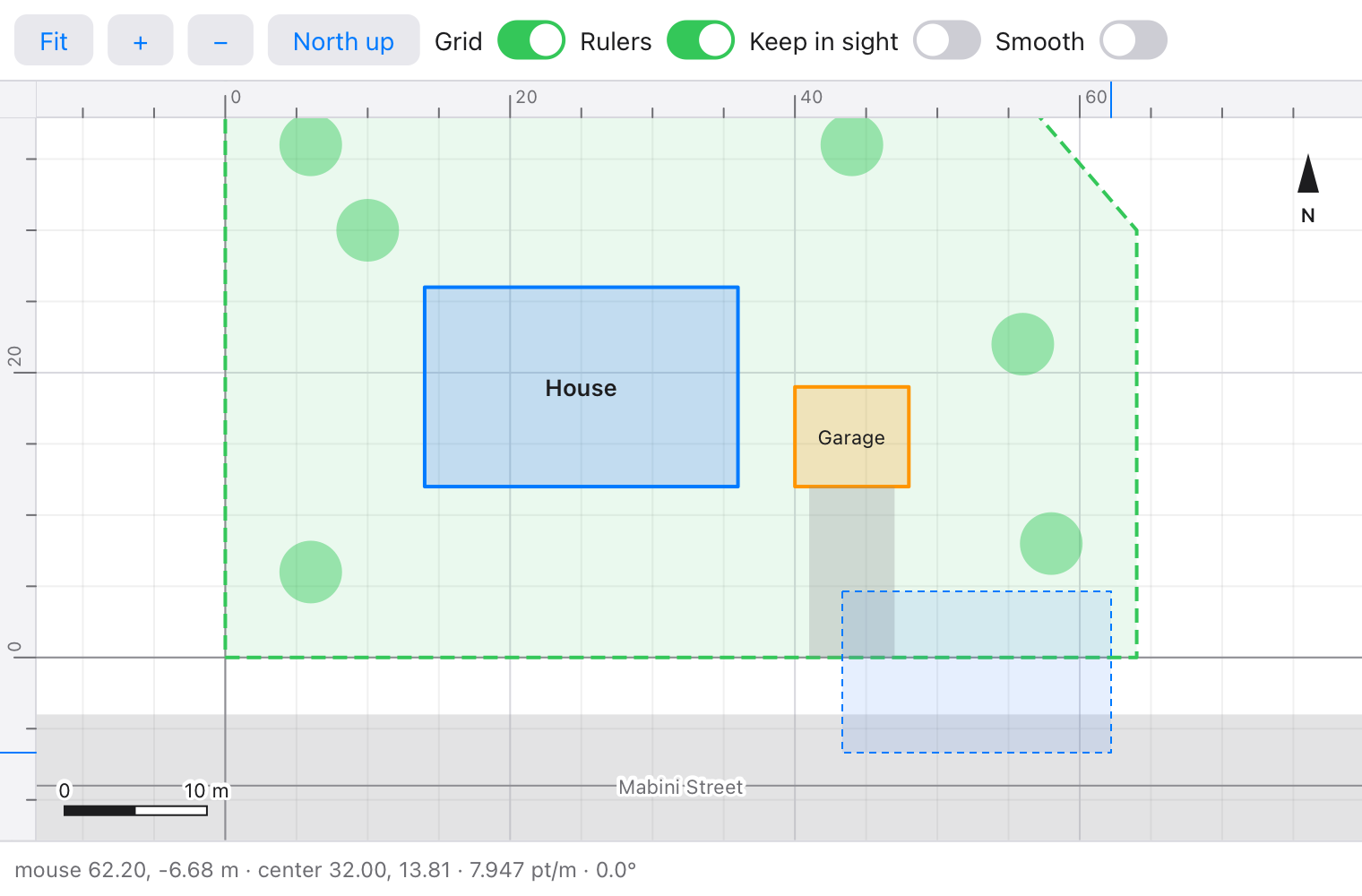
Canvas views: drawings, plans, maps, plots and pictures. A Viewport
turns world coordinates (metres, pixels, degrees) into points on the
canvas and back, and handles the mouse and keys the way drawing programs
do. It also draws a grid that suits the zoom, rulers, a scale bar and a
zoom box, and moves smoothly when it fits or zooms by a step.
import viewport

app Plan(width: 700, height: 480) {
    state vp = viewport.Viewport(content: viewport.box(0, 0, 60, 40))

    Canvas { g in
        viewport.drawGrid(g, vp)
        g.save()
        vp.apply(g)                     // draw in metres from here
        g.strokeRect(x: 10, y: 10, width: 20, height: 12, color: .blue, lineWidth: 2)
        g.restore()
        viewport.drawZoomBox(g, vp)
        viewport.drawScaleBar(g, vp, x: 16, y: g.height - 14, unit: "m")
    }
    .onResize { w, h in vp.resize(w, h) }
    .onPointer { e in
        let _used = vp.handle(e)
    }
    .onKey { key in
        let _used = vp.handleKey(key)
    }
    .onAppear {
        every(seconds: 1.0 / 60.0) { vp.tick() }    // smooth moves
    }
}
The wheel zooms about the mouse, a drag pans, Shift and a drag zooms into a box, a double click or "0" fits the content, and "+", "−" and the arrows zoom and pan.
Using it
Add it to a project (Tessel 0.10 or later):
tessel add viewport
then import viewport. (view is a word Tessel keeps for itself, so name
your viewport something else, like vp.)
Coordinates
| Field | |
|---|---|
width, height |
The canvas's size in points. Set them with resize(w, h) from .onResize. |
centerX, centerY |
The world point in the middle of the canvas. |
scale |
Points per unit of the world: 20 means a metre is drawn 20 points long. |
angle |
How far the picture is turned on the screen, counterclockwise, in radians. |
yDown |
false (the default): world y grows upwards, as in drawings, maps and plots. true: downwards, as in pictures and pages. |
| Method | Gives |
|---|---|
toScreen(x, y) |
Where a world point shows, as (sx, sy) in points from the canvas's top left corner. |
toWorld(sx, sy) |
The world point at a point of the canvas, such as an onPointer event's e.x, e.y. |
screenX(x, y), screenY(x, y), worldX(sx, sy), worldY(sx, sy) |
One coordinate of those, for use inside expressions. |
toScreenPoints(points) |
Many points (x, y, x, y, …) on the screen, ready for g.lines. |
points(length), length(points) |
A world length in points, and back: for a snap distance in metres, say. |
visible() |
The world box the canvas shows: for drawing only what's in sight. |
onScreen(box) |
The screen box around a world box. |
apply(g) |
Sets the canvas's transform so that what follows is drawn in world coordinates. |
You can draw in two ways. Either convert each point with toScreen, or
call apply(g) between g.save() and g.restore() and draw in world
units. With apply, lines and text keep their size in points. When y grows
upwards, text drawn under apply comes out upside down, so put text at
toScreen points after g.restore(). Pass angle: -vp.angle to turn
the text along with the picture.
Moving
| Method | |
|---|---|
pan(dx, dy) |
Moves the picture by screen points, the way a drag does. |
zoom(by: f, sx, sy) |
Zooms by f about a point of the canvas; the world point there stays there. |
zoomCentered(by: f), setScale(s) |
Zooms about the middle. |
zoomIn(), zoomOut() |
Zooms about the middle by zoomStep (1.5). |
rotate(by: a, sx, sy) |
Turns about a point of the canvas. |
setAngle(a) |
Turns to an angle about the middle. |
centerOn(x, y) |
Puts a world point in the middle. |
fit(box), fitContent() |
Shows all of a box (or content), margin points (20) from the edges. |
zoomToScreenBox(x1, y1, x2, y2) |
Zooms into a rectangle of the canvas. |
show(x, y, scale, angle) |
Goes to a place. |
resize(w, h) |
The canvas's new size. The middle stays where it is. The first call fits content at once (unless fitFirst is false), so the drawing shows whole when the window opens. |
Limits: zooming stops at minScale and maxScale. Set content to the
box around your drawing (viewport.box(x1, y1, x2, y2), or
viewport.boxAround(points)). With keepInSight: true, panning and
zooming then stop while sight points (40) of the content still show on
each side.
Smooth moves
While smooth is true (the default), fit, fitContent, zoomIn,
zoomOut, centerOn, show and the zoom box move over duration
seconds (0.25). They speed up at first and slow down at the end. A zoom
keeps the point that stays put fixed the whole way. Start a timer to run
these moves:
.onAppear { every(seconds: 1.0 / 60.0) { vp.tick() } }
tick() takes the move on by a sixtieth of a second, and does nothing when
no move is under way. Moves are timed by ticks, not by the clock, so a
headless test's wait runs them too. finish() jumps to the end of a
move, and stop() leaves the view where it is. animating says whether a
move is under way. Zooming with the mouse is never smoothed, because the
view follows the mouse directly.
The mouse and keys
handle(e) does what the mouse does, for .onPointer. It returns true
if it used the event, and false if the event is the app's (a move, or a
left drag when leftDragPans is off), so an app with tools of its own
writes:
.onPointer { e in
    if !vp.handle(e) {
        myTool(e, vp.toWorld(e.x, e.y))
    }
}
| What it does | Field | |
|---|---|---|
| Wheel, two-finger scroll | Zooms about the mouse. With Cmd or Option held, it pans. | wheel: .pans swaps the two |
| Pinch | Zooms about the mouse. | |
| Left drag | Pans. | leftDragPans: false leaves left drags to the app |
| Middle drag | Pans. | |
| Shift and a left drag | Draws a zoom box (drawZoomBox(g, vp) shows it) and zooms into it. |
boxZoom |
| Right drag | Turns the picture. | rotates: true (off by default) |
| Double click | Fits the content. | doubleClickFits |
handleKey(key) does what keys do, for .onKey, and returns false for
keys it doesn't use. "+" (or "=") and "−" zoom, "0" fits the content, the
arrows pan by an eighth of the canvas, and "[" and "]" turn by rotateStep
(15°) when rotates is on.
Grids, rulers and scale bars
| Function | |
|---|---|
drawGrid(g, vp, spacing:, color:, minorColor:, axisColor:) |
Grid lines a round step apart (1, 2 or 5 × 10ⁿ, at least spacing points, 100), fainter lines between them, and the axes. It turns with the view. |
drawRulers(g, vp, size:, spacing:, color:, background:, mouseX:, mouseY:) |
Rulers along the top and left edges, labelled in world units, with a mark at the mouse. Not drawn while the view is turned. |
drawScaleBar(g, vp, x:, y:, maxWidth:, unit:, color:) |
A map's scale bar showing a round length at most maxWidth points long (120). With unit: "m", it switches to km and mm when the numbers get large or small. |
scaleBar(vp, maxWidth:, unit:) |
That length, its size in points and its label, for drawing your own bar. |
drawZoomBox(g, vp, color:) |
The zoom box while it's dragged. |
gridStep(vp, spacing:) |
The grid's step: for snapping to the grid. |
niceStep(x) |
The smallest round number that is at least x. |
tickLabel(value, step:) |
A number with as many decimals as the step needs, like 2.5e6 when it's very large or small. |
Tests
tessel run tests
TESSEL=tessel sh tests/ui.sh
The first checks the library against 1500 random views put through 9587
random pans, zooms, turns, resizes, fits and zoom boxes (33 000 values).
The expected values in tests/cases.json come from
python3 tools/oracle/oracle.py, which works each view out a different
way, as a 3×3 matrix (it needs numpy). It then checks the rest by hand:
boxes, the mouse and keys, smooth moves, limits, steps and labels. The
second drives the example app headless with the mouse, keys and buttons
(22 checks).
What's where
| File | |
|---|---|
viewport.tsl |
Viewport: conversions, moving, the mouse and keys, smooth moves; Wheel and Drag. |
box.tsl |
Box, box and boxAround. |
draw.tsl |
Grids, rulers, scale bars, the zoom box, round steps and labels. |
examples/main.tsl |
A site plan to try it on: tessel run examples. |
tests/ |
The tests and the oracle's cases. |
tools/oracle/oracle.py |
Makes the cases. |
Licence
MIT: see LICENSE.